VirtuaTilt Wiki › Meta Quest
Visual Pinball X on Meta Quest
Play Visual Pinball X tables on your Quest, with no PC. Your VirtuaTilt buttons, plunger, nudge, solenoids and shaker work over one USB cable, or over Bluetooth with no cable.
What you need
- Meta Quest 2, Quest Pro, Quest 3 or Quest 3S. It should work on all of them, but we tested it only on Meta Quest 3.
- Wireless VirtuaTilt, with firmware v8.0.22 or later. VirtuaTilt Bridge works on Wireless VirtuaTilt only. Check your firmware in GUIConfigTool > Overview. To update it, see Firmware Update.
- A USB-C OTG adapter, to connect the cabinet to the Quest. Over Bluetooth you don't need it: see Play over Bluetooth.
- A PC, only to install the apps and to copy your tables.
- A USB cable that carries data, from the Quest to the PC.
- Your tables and ROMs. We don't provide them.
Install
You do this only once.
Turn on Developer Mode
On your phone, open the Meta Horizon app: Devices > your headset > Headset settings > Developer mode. Meta can ask you to create a free developer account.
Connect the Quest to your PC
- Download Meta VR Developer Hub and install it on your PC. Its download page can still call it Meta Quest Developer Hub. If it says “This page isn’t available”, sign in or create a free account, then open it again.
- Connect the Quest with the data cable, without adapters.
- Put on the headset and allow USB debugging. Tick “Always allow”.
Download the two apps
Visual Pinball X, the official app, build 6583. It is the one we tested. If GitHub says that this file has expired, take the same file from the latest build.
- Open its page on GitHub. You must be signed in: if you don't have an account, create a free one.
- Scroll down to Artifacts and click this file. It ends with
android-quest-Release.apk:
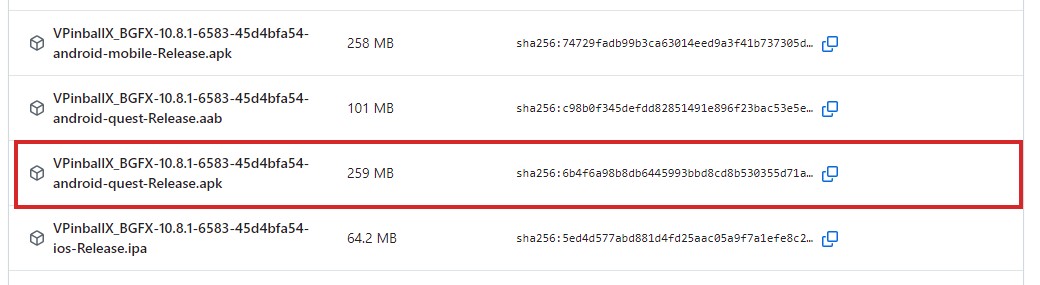
NOTE: Don't take the .aab file or the mobile file. They are not for the Quest. Older builds don't work here: they don't have the nudge sensor and the DMD we use. VirtuaTilt Bridge tells you if your build is too old.
VirtuaTilt Bridge, our small app: VirtuaTilt-Bridge-1.2.5.apk, in the Meta Quest package. The cabinet profiles are in the same package.
Install them
Open Meta VR Developer Hub and click Device manager:

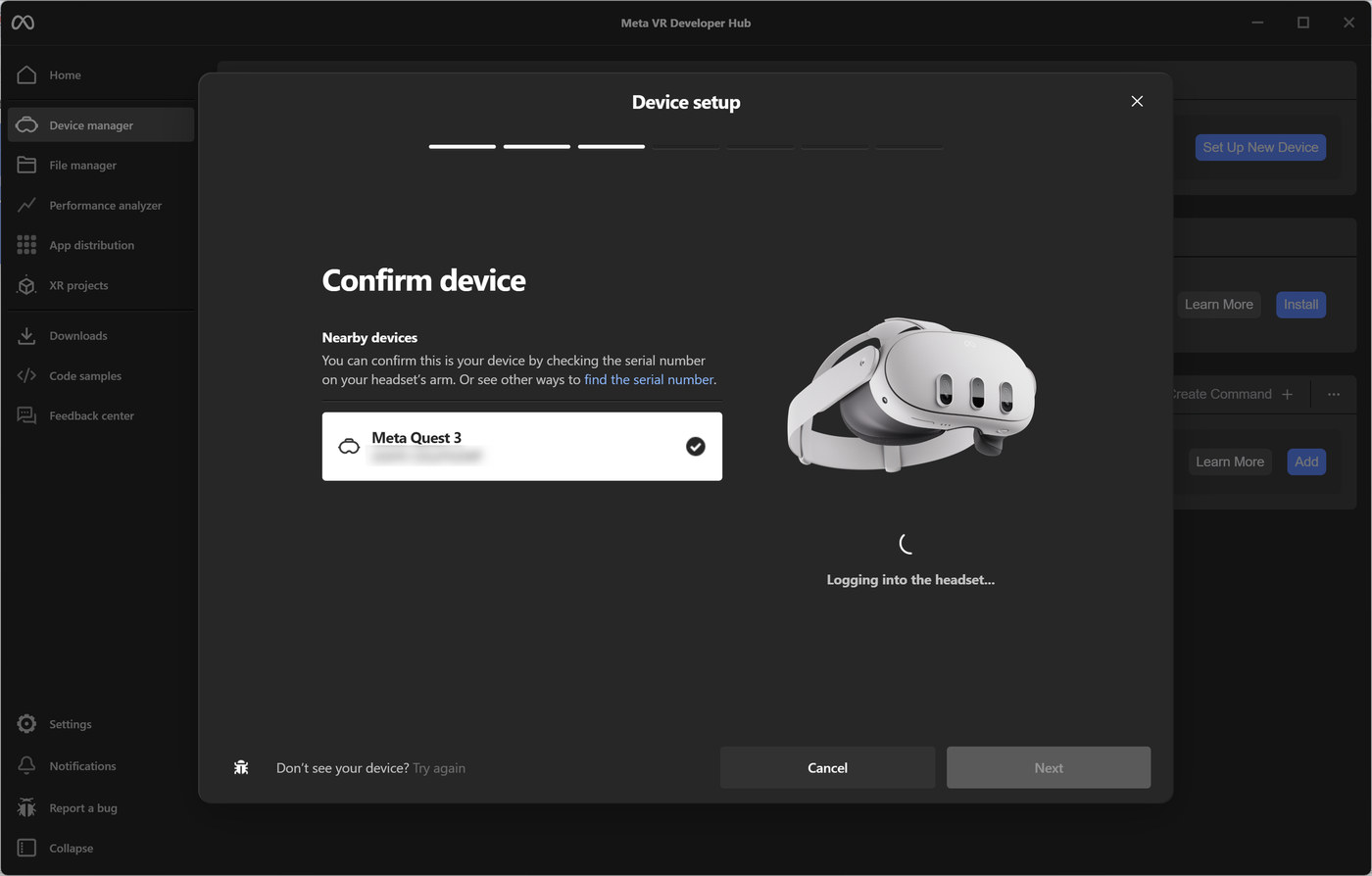
If your Quest is not there yet, click Set Up New Device. Check that it shows your Meta Quest and follow the steps:
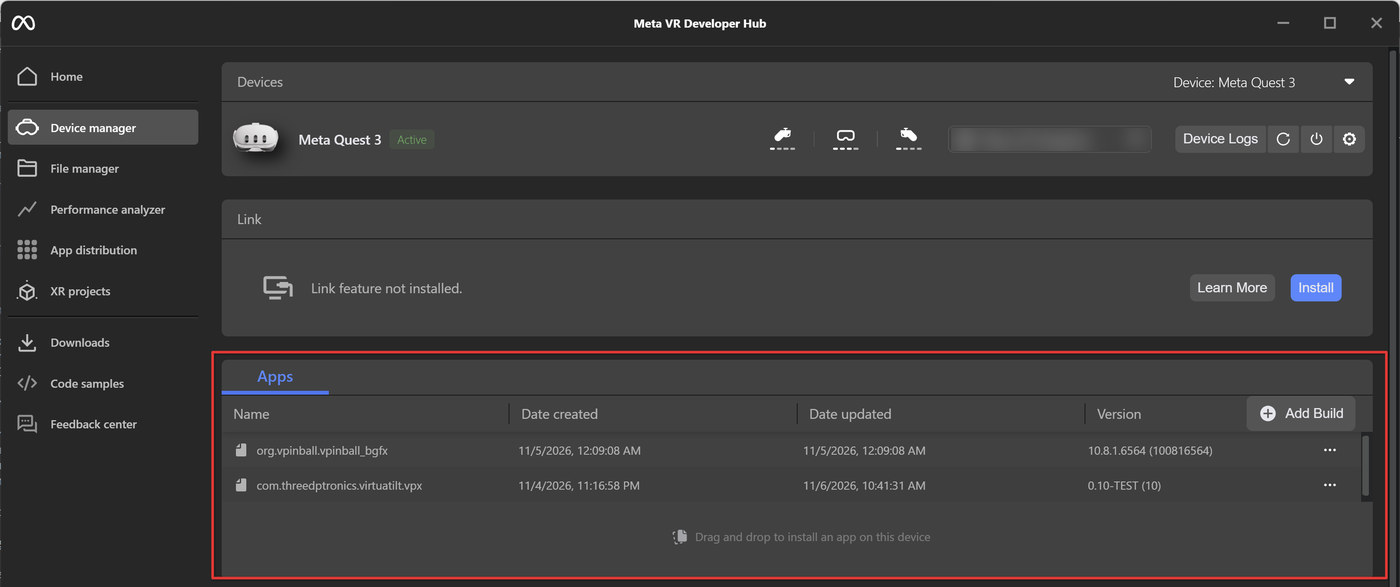
In the Apps section, drag each APK on the text Drag and drop to install an app on this device. You can also click Add Build:
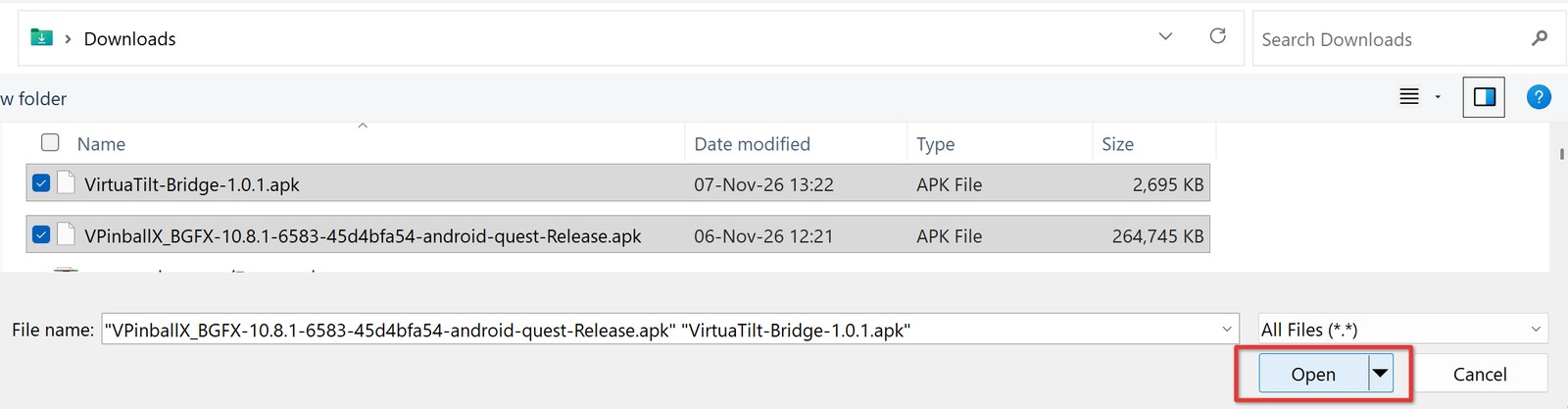
With Add Build you can select both APKs together, then click Open:
When they are installed, both apps are in the list:

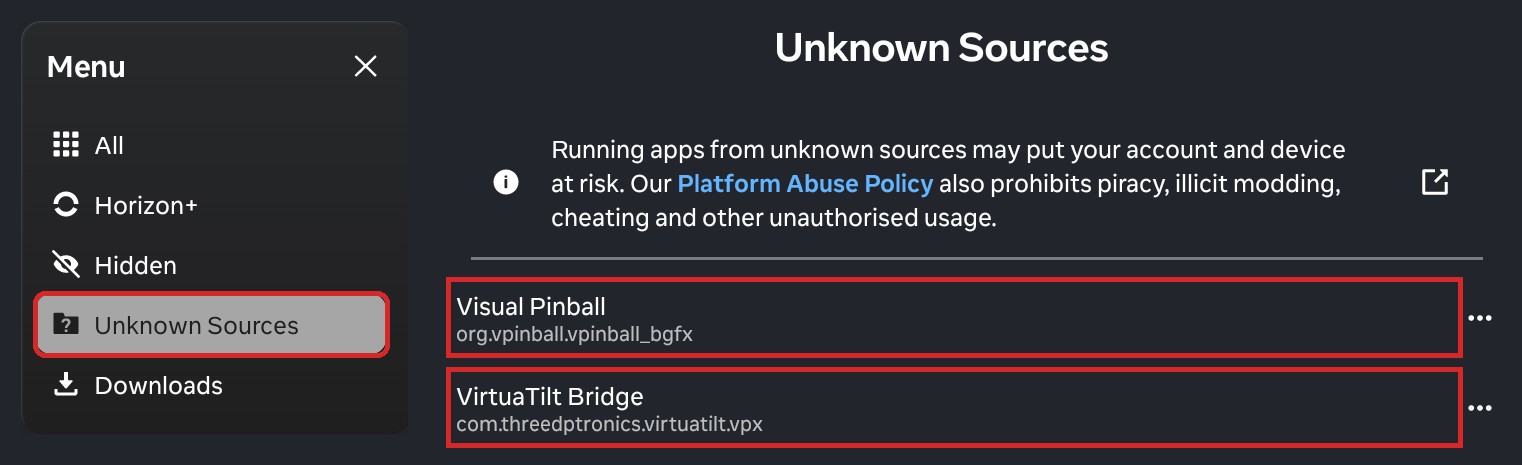
You find both apps in your Quest in Library > Unknown Sources. Visual Pinball X is listed there as Visual Pinball:
Load the cabinet profile
Connect the cabinet to your PC and load this profile in GUIConfigTool (Configuration > Import from File and Program Pico) or from a profile slot:
VTConfig-USB-VPX-Quest-DOF_v1.2
IMPORTANT NOTE: This profile is only for the Quest. To play on your PC again, load your PC profile.
Turn on the Web Server
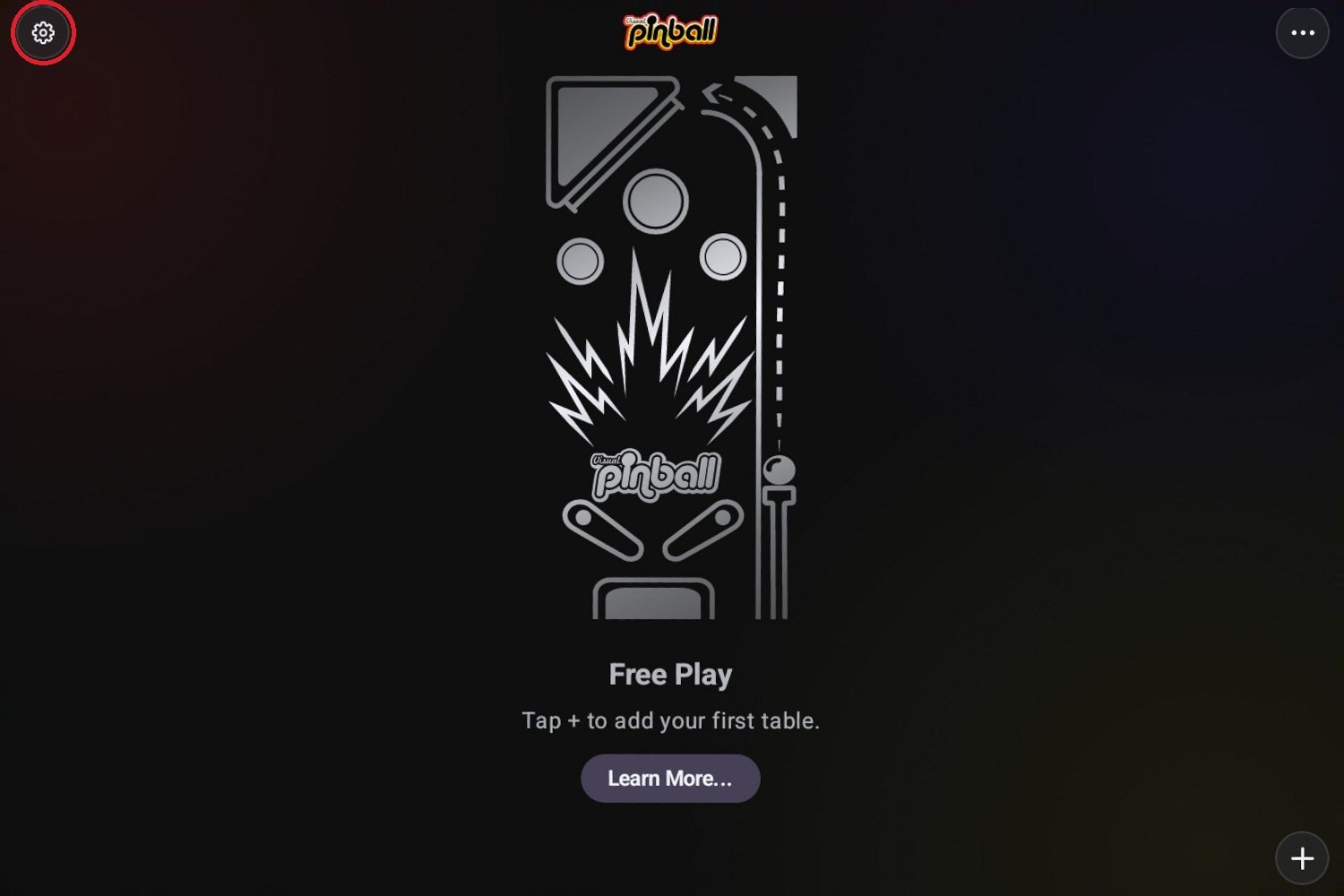
Open Visual Pinball X on the Quest. Click the gear at the top left:
In the Web Server section, turn on Enabled:
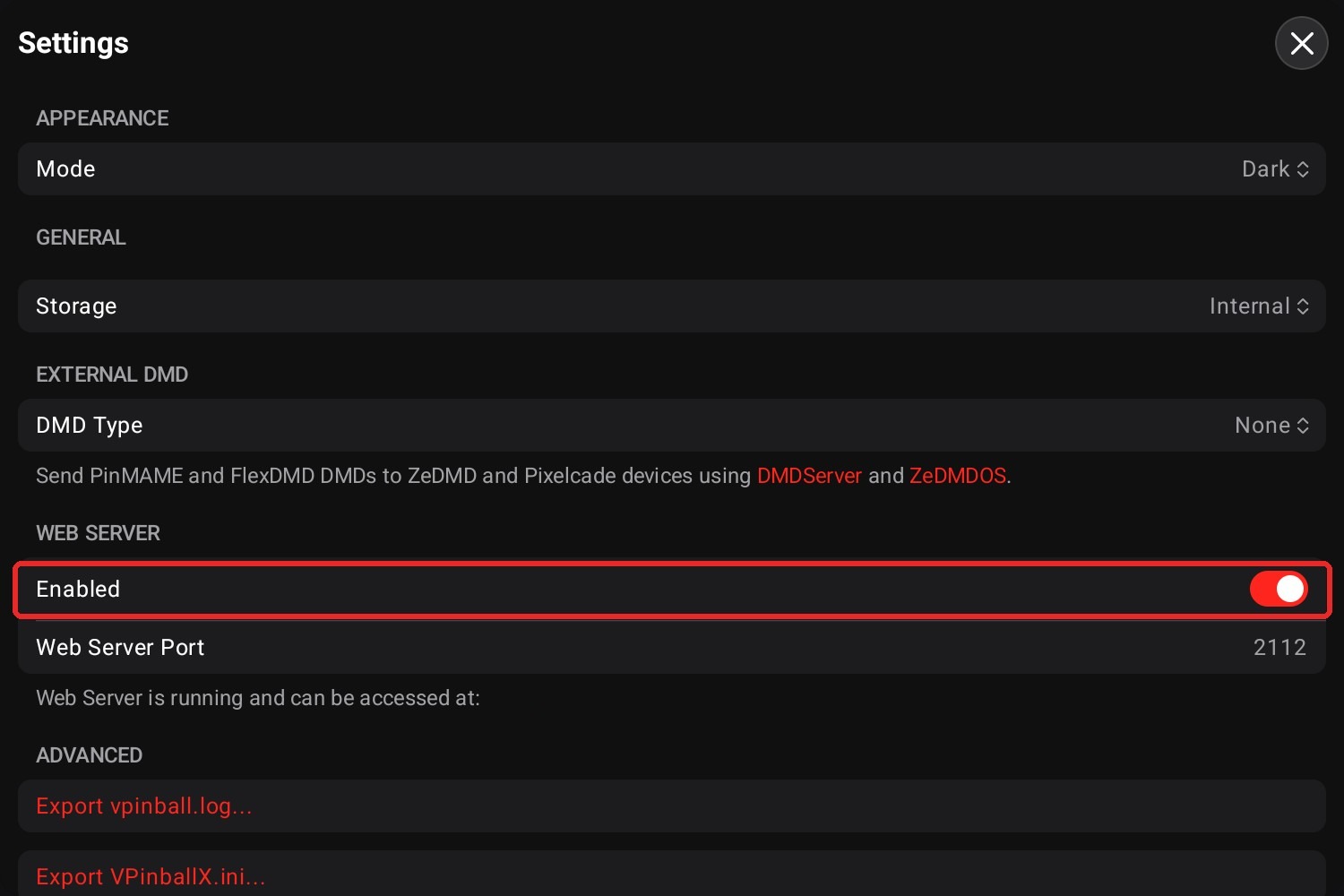
NOTE: Leave it on. VirtuaTilt Bridge talks to Visual Pinball X through the Web Server. After Set up it works only inside the headset, so nobody on your network can reach your files. The address you read there does not open from your PC any more.
Add your tables
You don't need to make any folder. VirtuaTilt Bridge puts every file in the right place:
- Open VirtuaTilt Bridge once: it makes the folder for your tables.
- Keep Visual Pinball X open on the Quest, and connect the Quest to the PC with the data cable.
- In the headset you see USB Detected. Click on this notification to allow the PC to access the files. If you don't see it, open the notifications in the Quest menu (the bell icon). You do this every time you connect the cable.
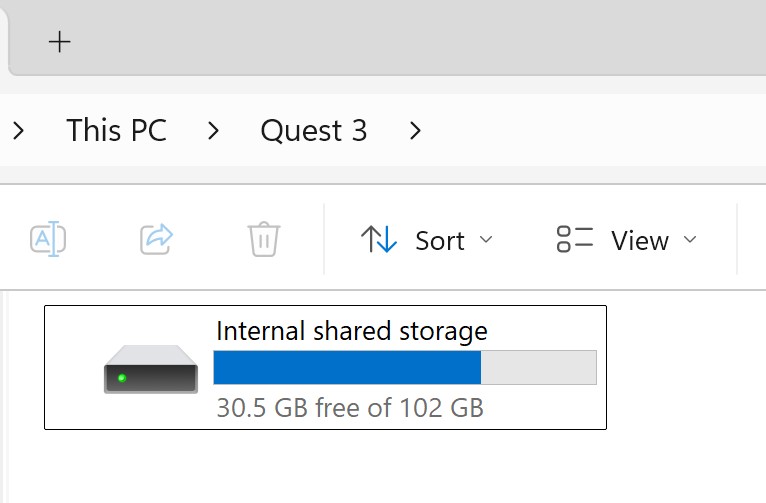
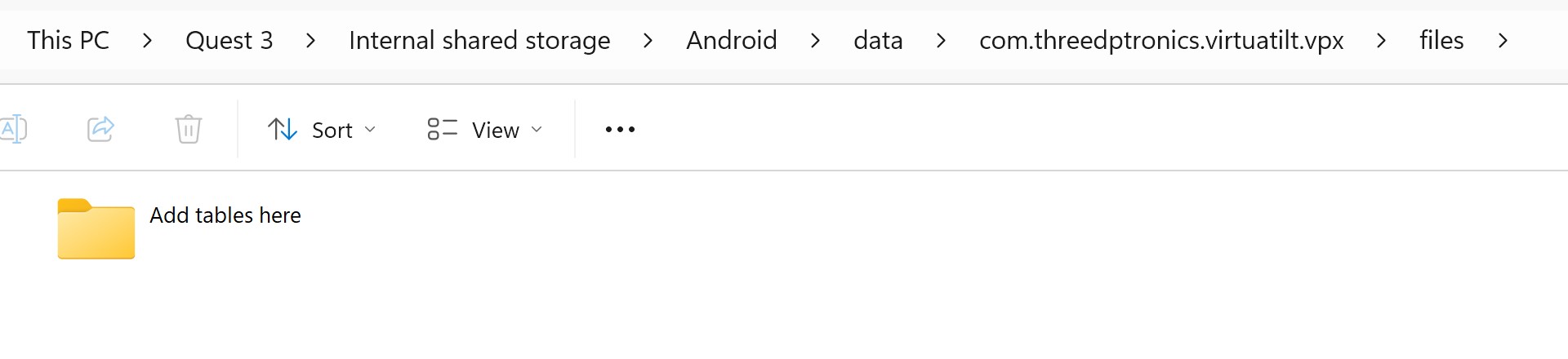
- In Windows Explorer you now see Internal shared storage under your Quest:
- Open this folder:
Your Quest > Internal shared storage > Android > data >
  com.threedptronics.virtuatilt.vpx > files > Add tables here
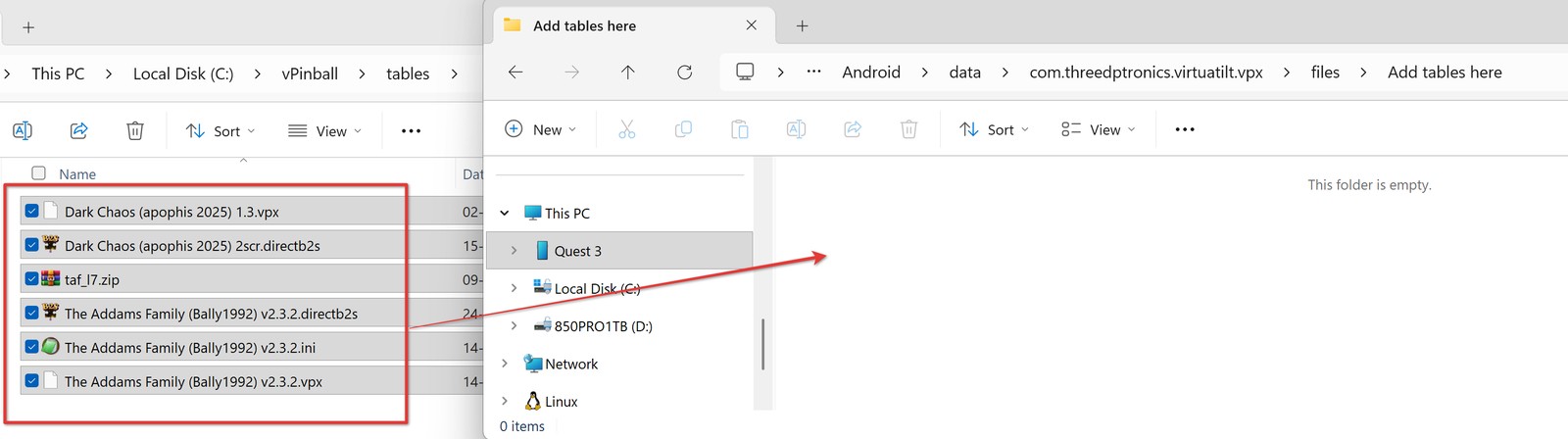
- Drag your tables (
.vpx), backglasses (.directb2s), ROMs (.zip), NVRAM (.nv) and color files into it. In any order, also together for many tables. Folders and zip packs are fine too.
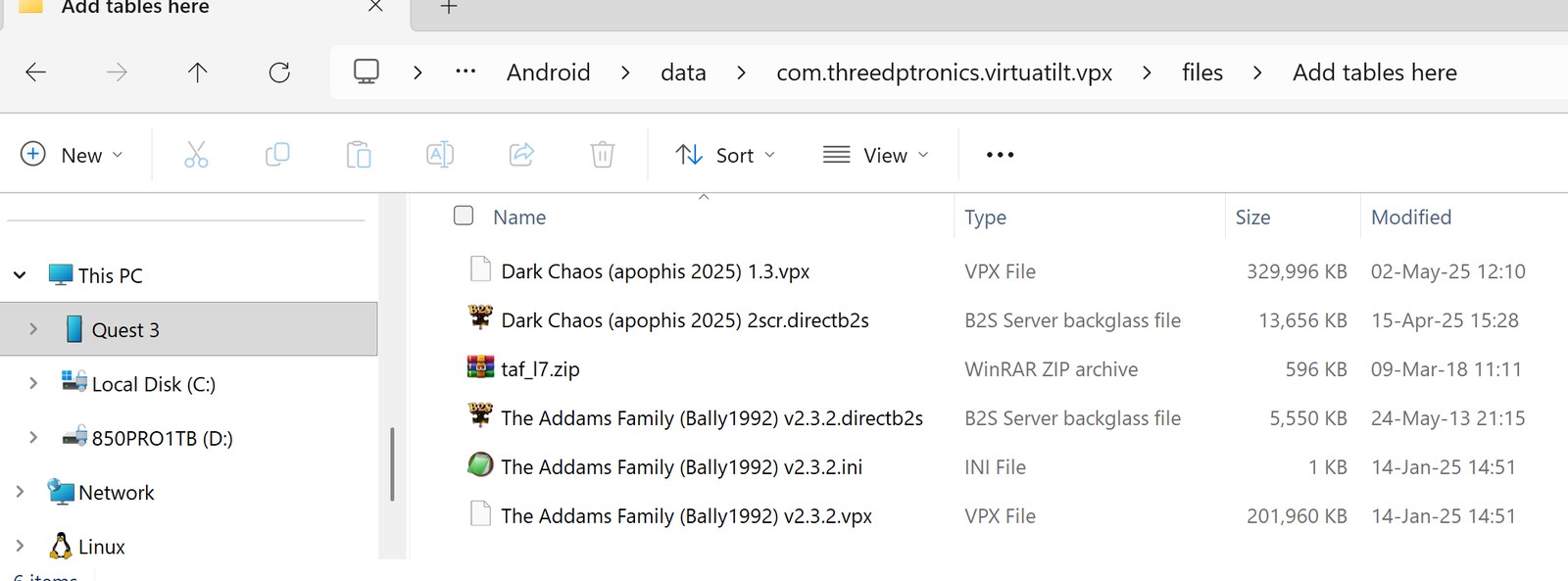
When the copy ends, you see your files in the folder:
- In VirtuaTilt Bridge, open Your tables and click Add the new tables:
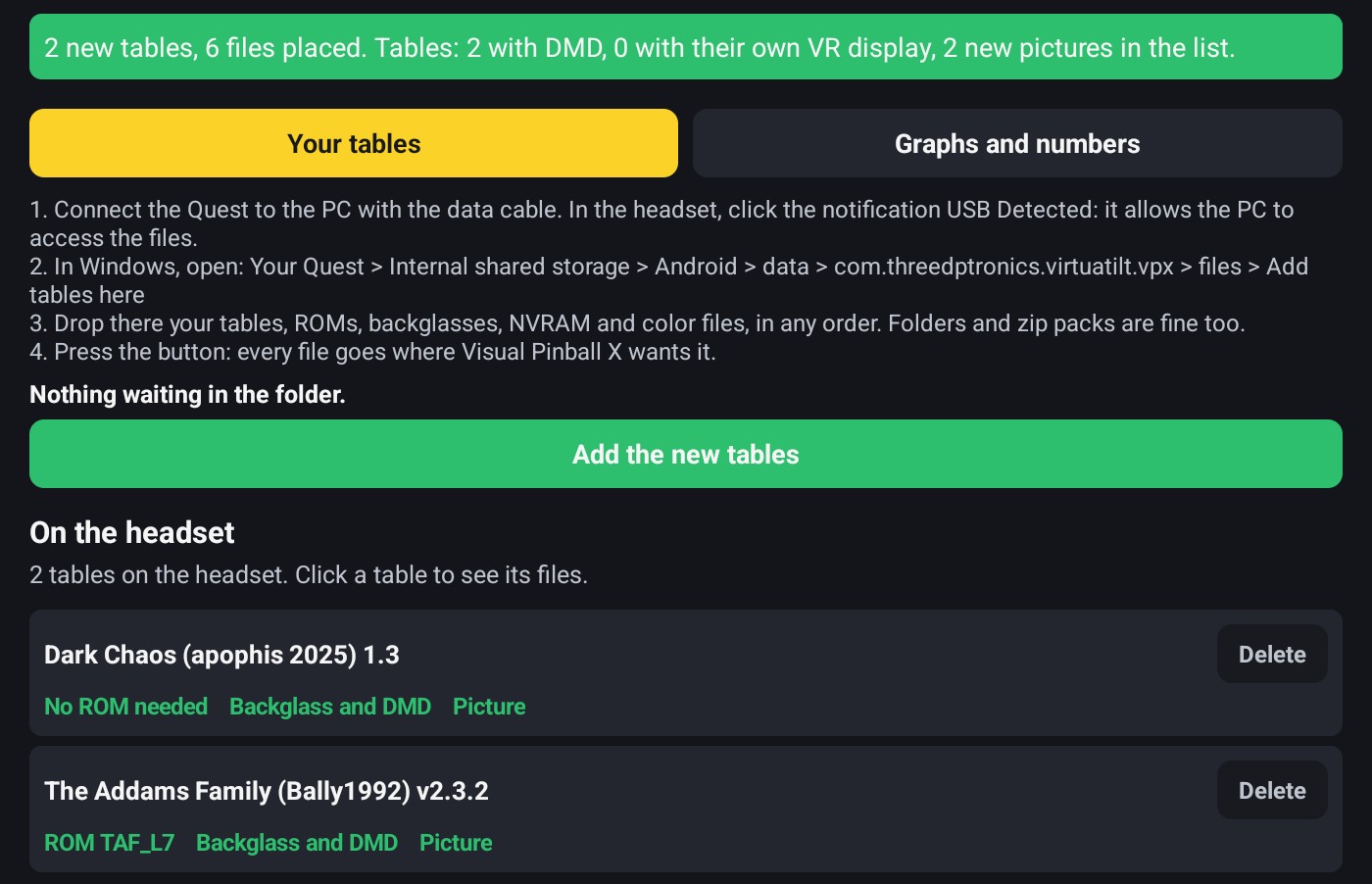
A big table takes about 1 minute to add. Each table says in the list if a ROM is missing, with its name. If VirtuaTilt Bridge does not know a file, it leaves it in the folder and tells you.
Your tables are now in Visual Pinball X:
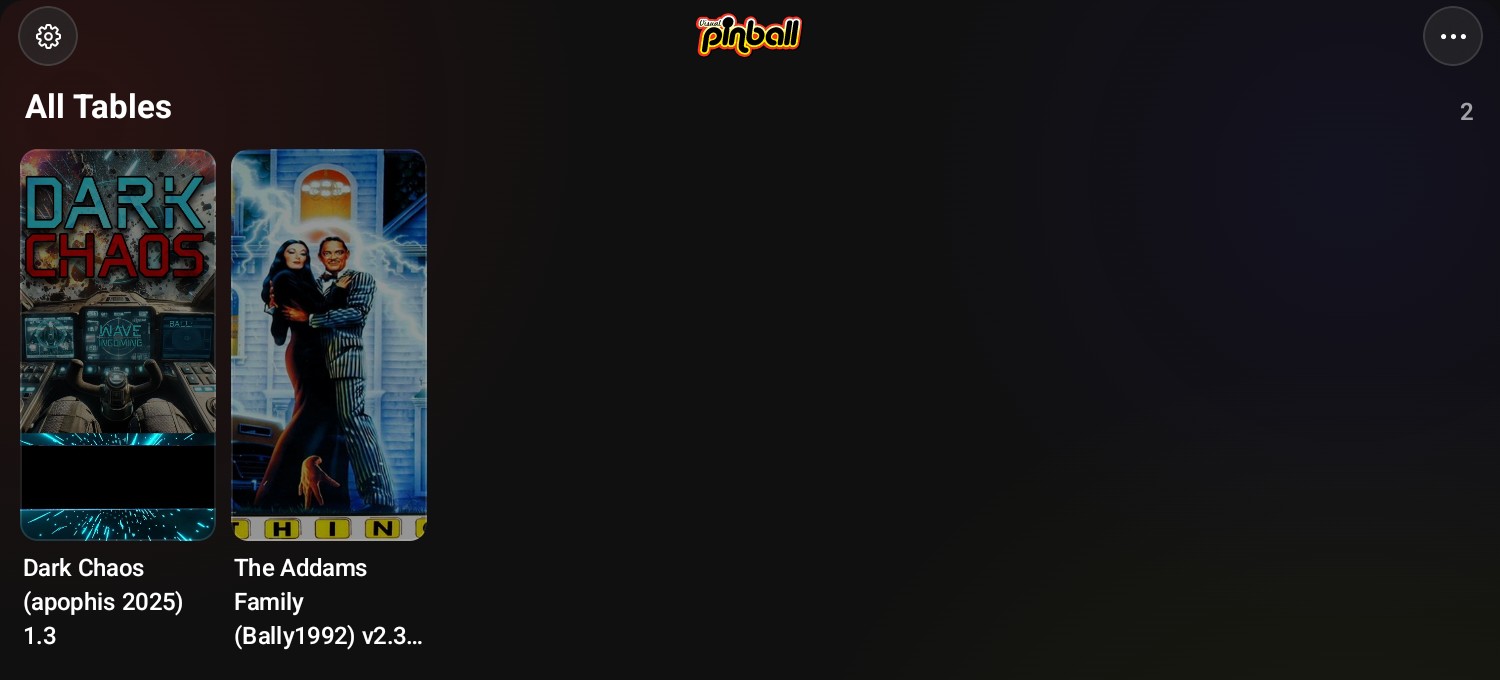
NOTE: Leave ROMs zipped and don't rename them. Some ROMs also need their original one: if a table has no sound, see Problems.
Connect the cabinet to the Quest
Connect the cabinet USB cable to the Quest, with the OTG adapter. The headset asks if VirtuaTilt Bridge can use the cabinet. If you see no request, open the notifications in the Quest menu (the bell icon), or open VirtuaTilt Bridge. Tick Always open with this app and click OK:
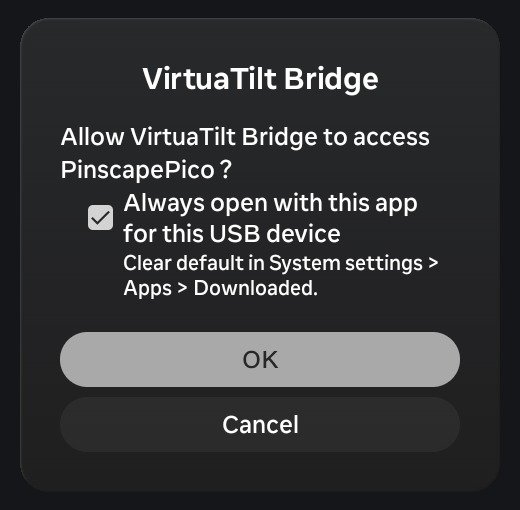
With the tick, VirtuaTilt Bridge starts by itself every time you connect the cabinet, in the background: you don't see its window, and you don't need it to play.
If Visual Pinball X is open, VirtuaTilt Bridge says Restart the Quest. Go on: you restart at the end of step 9.
IMPORTANT NOTE: In our tests the Quest battery went down about 1% per minute while playing. Charge it first.
Press Set up
Visual Pinball X must be open. Open VirtuaTilt Bridge and click Set up Visual Pinball X:
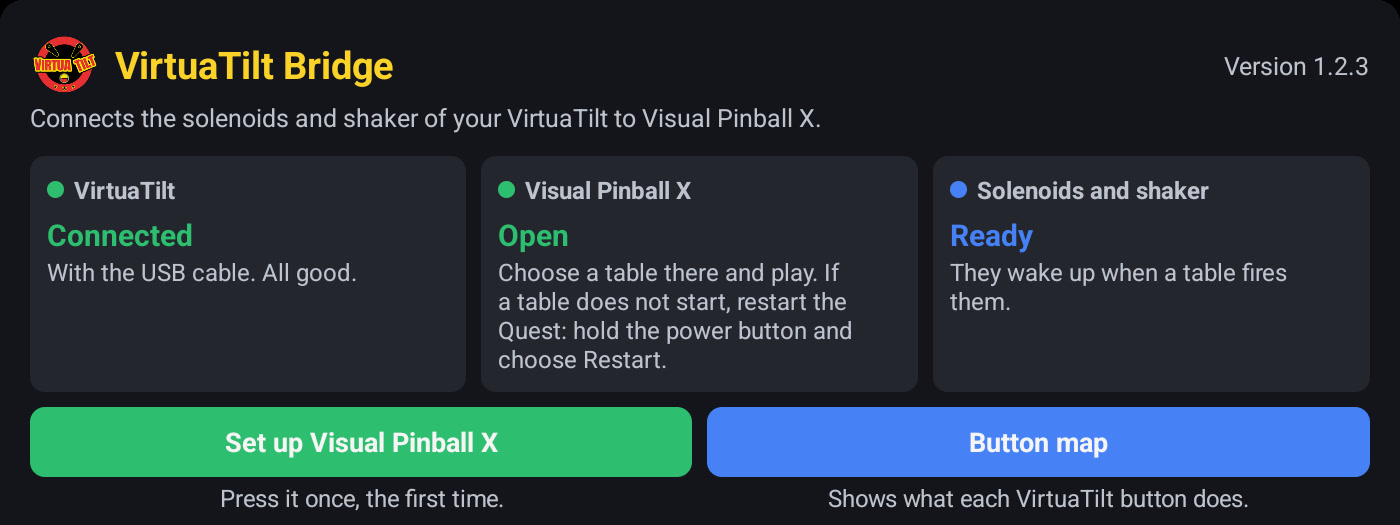
It sets the buttons, plunger, nudge, solenoids, shaker and graphics. You don't need to map anything. Wait for the message Done.
Then restart the Quest: hold the power button and choose Restart. After the restart, the headset asks again if VirtuaTilt Bridge can use the cabinet: click OK. If you don't see it, open the notifications in the Quest menu (the bell icon).
IMPORTANT NOTE: Restart the Quest before you open a table. Visual Pinball X keeps its old settings in memory and writes them back when a table closes.
That's it, enjoy!
When you add tables later: do step 7 again. You don't need Set up. With the USB cable, the Quest has only one port: unplug the cabinet before you open Visual Pinball X, and restart the Quest after you connect it again. Over Bluetooth you don't need any of this.
Every time you play
- Connect the cabinet to the Quest first. VirtuaTilt Bridge starts by itself, in the background: you don't see its window. Over Bluetooth, see Play over Bluetooth.
- Did you connect it with Visual Pinball X still in memory? VirtuaTilt Bridge opens and says Restart the Quest. Closing the window with the X does not end Visual Pinball X. Hold the power button, choose Restart, and click OK on the request.
- Open Visual Pinball X and click a table.
- To leave the table, press the Exit Table button, or Y on the left controller.
- Before you open another game, close the Visual Pinball X and VirtuaTilt Bridge windows, or restart the Quest.
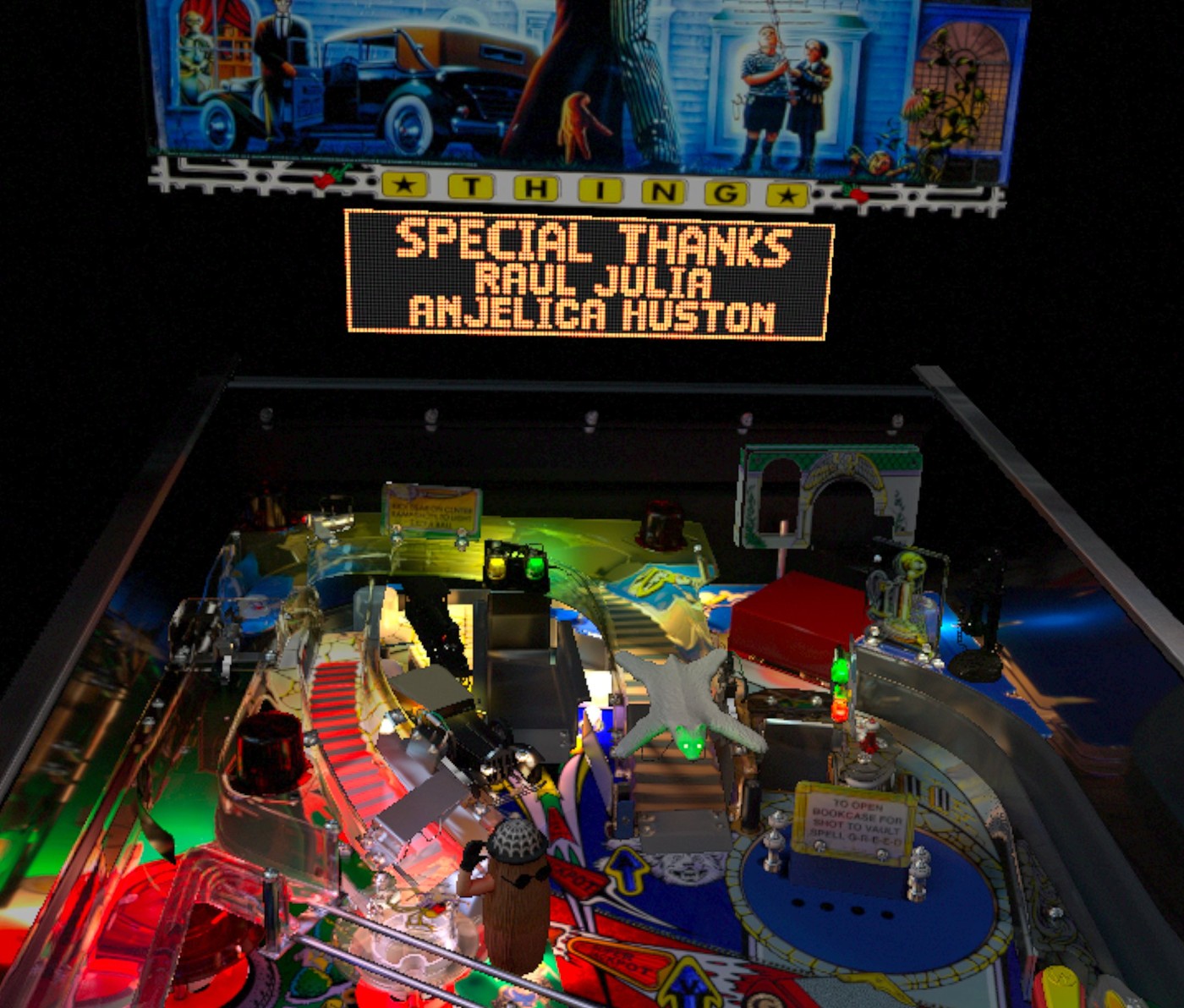
IMPORTANT NOTE: Never plug or unplug the cabinet cable while Visual Pinball X is running, even with no table. The cabinet buttons stop working, and a flipper button can close Visual Pinball X. With a table open, the next table can also fail to start. If this happens, restart the Quest and click OK on the request.
IMPORTANT NOTE: Never close a table from the Quest menu, the one you open with the Meta button on the right controller. Its Quit closes only the window: the table keeps running in the background, and the next table does not start. To leave a table, use the Exit Table button, Y on the left controller, or In-game menu > Quit.
IMPORTANT NOTE: Do you use Quest Games Optimizer? Turn off its option “Free RAM on game launch by closing open apps and background processes”. It closes VirtuaTilt Bridge, and the solenoids and shaker stop. It also closes the Quest app that confirms a Bluetooth pairing. When a game starts, its window can also take the cabinet buttons: if the flippers do nothing, close Quest Games Optimizer.
Play over Bluetooth
No cable between the cabinet and the Quest: buttons, plunger, nudge, solenoids and shaker all go over Bluetooth. First do steps 1 to 4, 6 and 7 of Install.
Over Bluetooth everything arrives a few milliseconds later than with the USB cable: about 5 ms for the buttons, about 10 ms for the solenoids and shaker. In our tests we could not feel it.
Load the Bluetooth profile
Connect the cabinet to your PC and load this profile, as in step 5 of Install:
VTConfig-BT-VPX-Quest-DOF_v1.1
Pair the cabinet
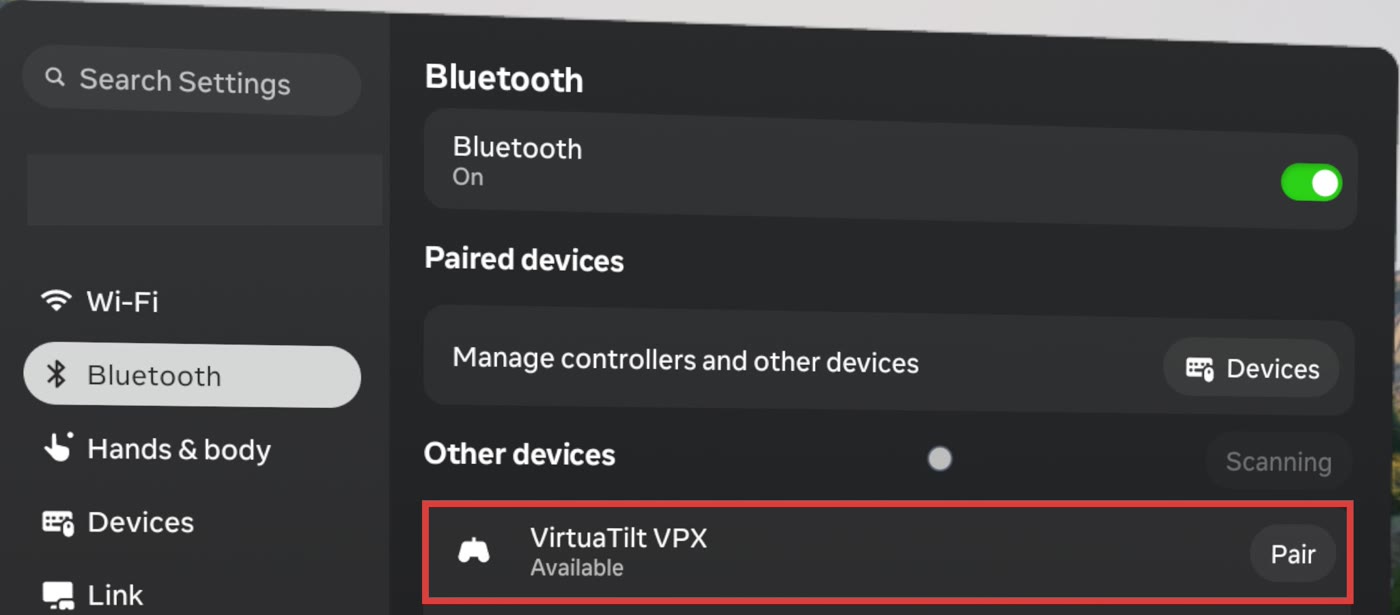
Turn on the cabinet, near the Quest. On the Quest open Settings > Bluetooth. Under Other devices, click Pair beside VirtuaTilt VPX:
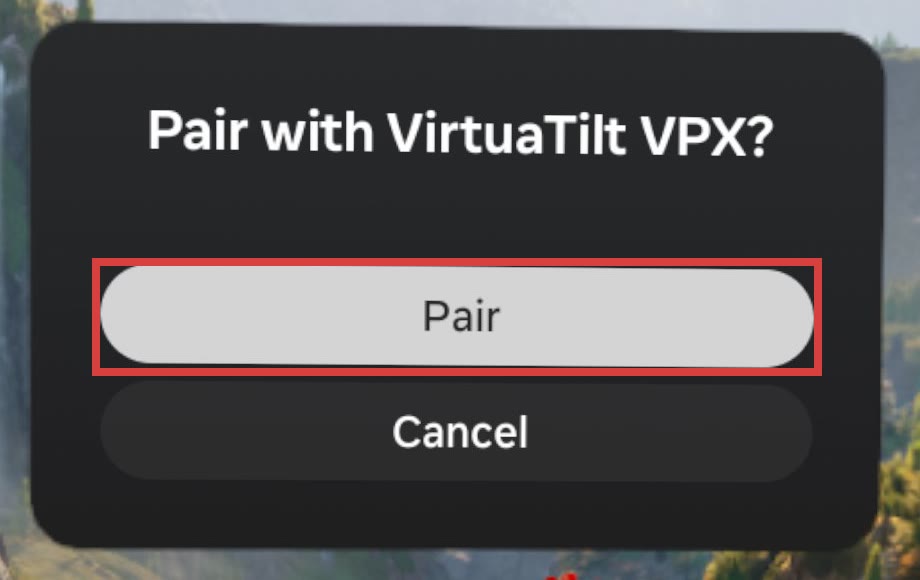
Then click Pair in the window that opens:
Allow Bluetooth
Open VirtuaTilt Bridge. It asks to use Bluetooth: click Allow. The VirtuaTilt box says Connected, Over Bluetooth:
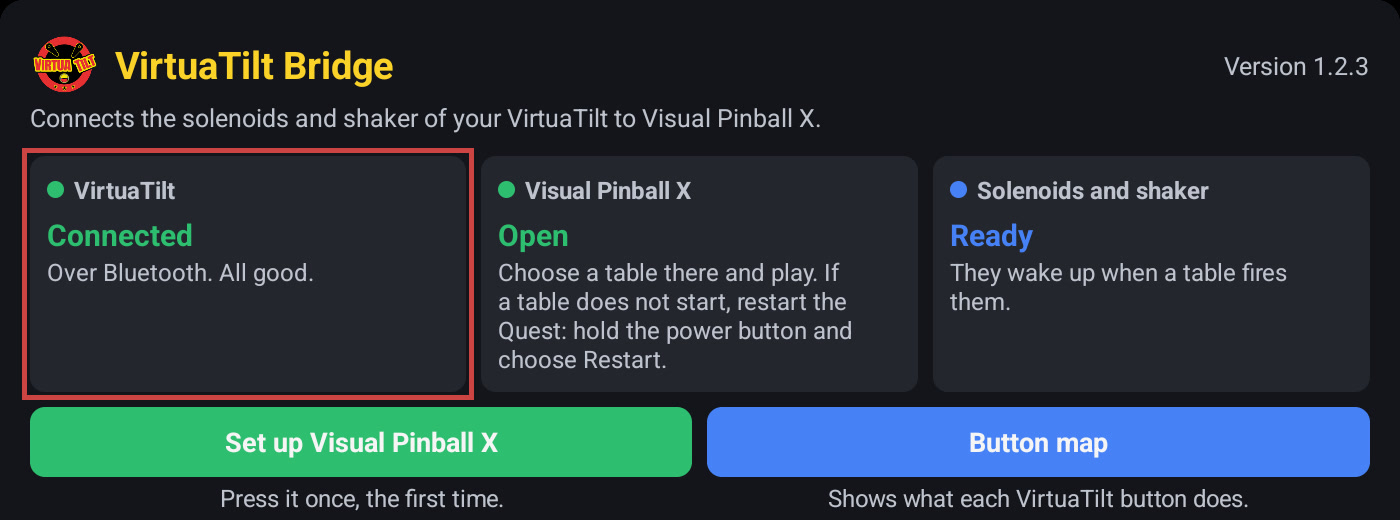
If Visual Pinball X is open, it says Restart the Quest. Go on: you restart at the end of step 4.
Press Set up
Open Visual Pinball X, go back to VirtuaTilt Bridge and click Set up Visual Pinball X. Wait for Done, then restart the Quest. Over Bluetooth there is no request to accept after the restart.
Every time you play over Bluetooth
- Turn on the cabinet before you open Visual Pinball X. The Quest connects to it, and VirtuaTilt Bridge starts by itself, in the background.
- Did you turn on the cabinet with Visual Pinball X already open? Open VirtuaTilt Bridge: if it says Restart the Quest, restart the Quest. Over Bluetooth it cannot show its window by itself.
- From USB to Bluetooth, or back: VirtuaTilt Bridge says Press Set up. Click Set up Visual Pinball X again, then restart the Quest.
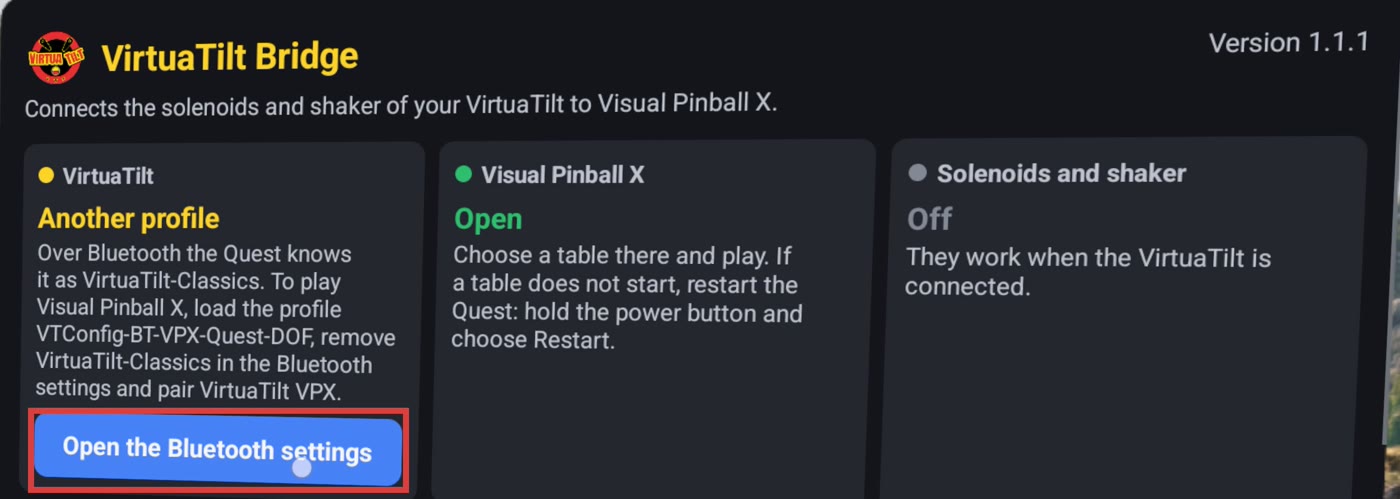
IMPORTANT NOTE: After you load the Bluetooth profile of another game, pair the cabinet again. The Quest still knows it by the old name, like VirtuaTilt-Classics. VirtuaTilt Bridge tells you, and its button opens the Bluetooth settings: remove the old name there, then pair VirtuaTilt VPX.
Buttons
You find this map also in VirtuaTilt Bridge, with the Button map button:
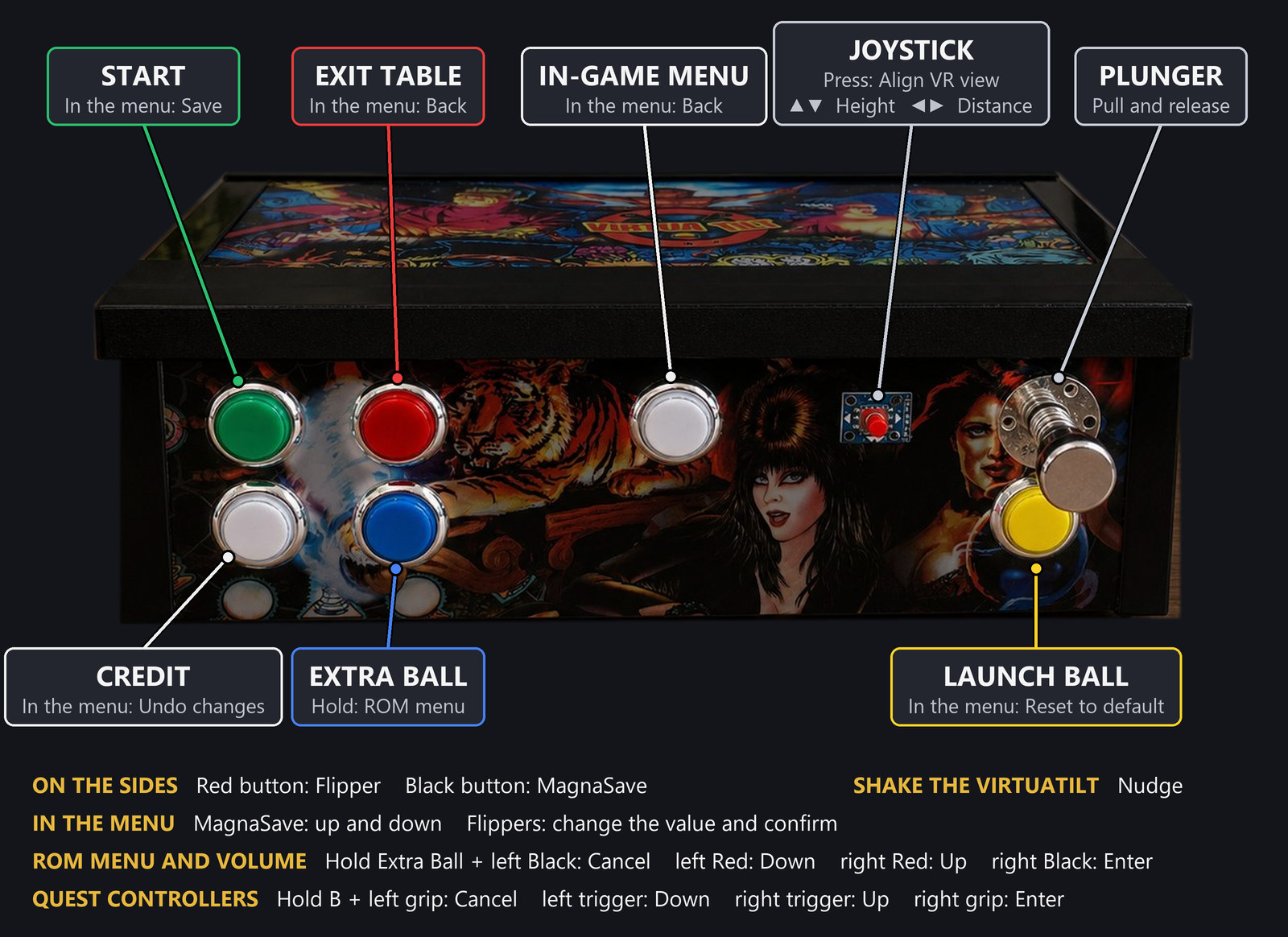
The Quest controllers still work: triggers for the flippers, left stick for the nudge, right stick for the plunger, X on the left controller for the in-game menu, Y to leave the table.
In-game menu
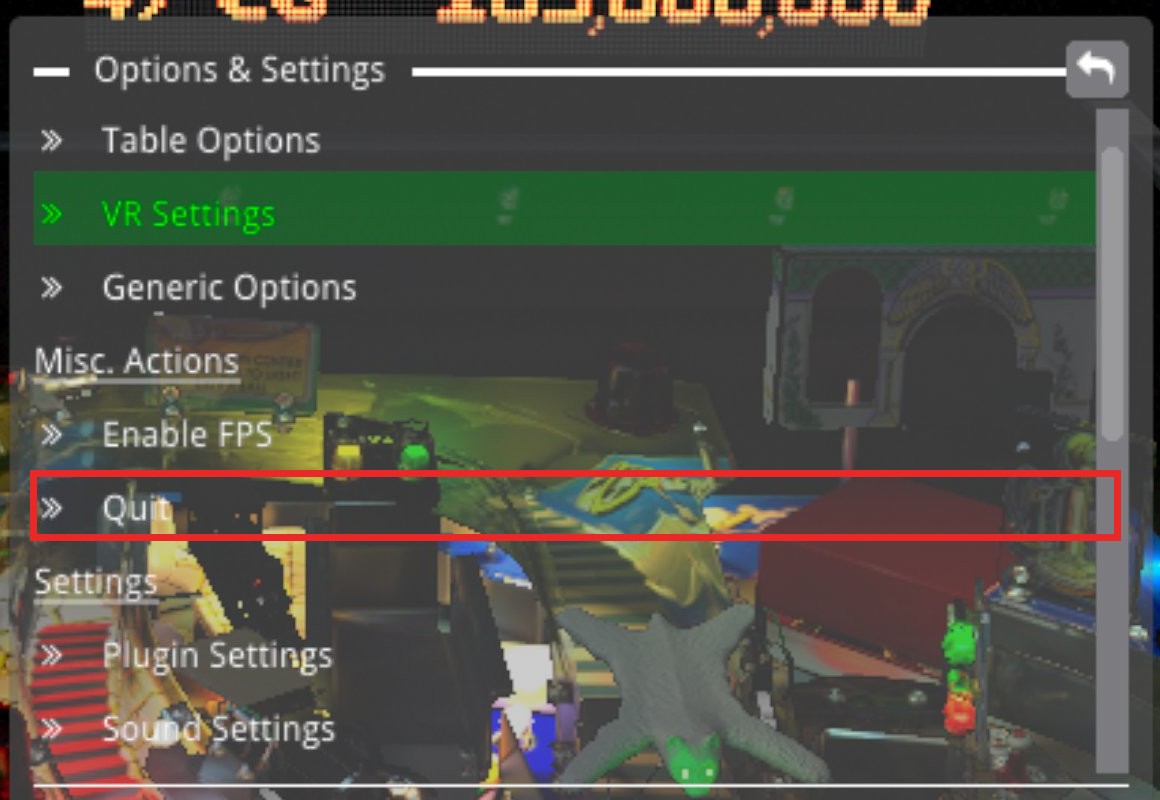
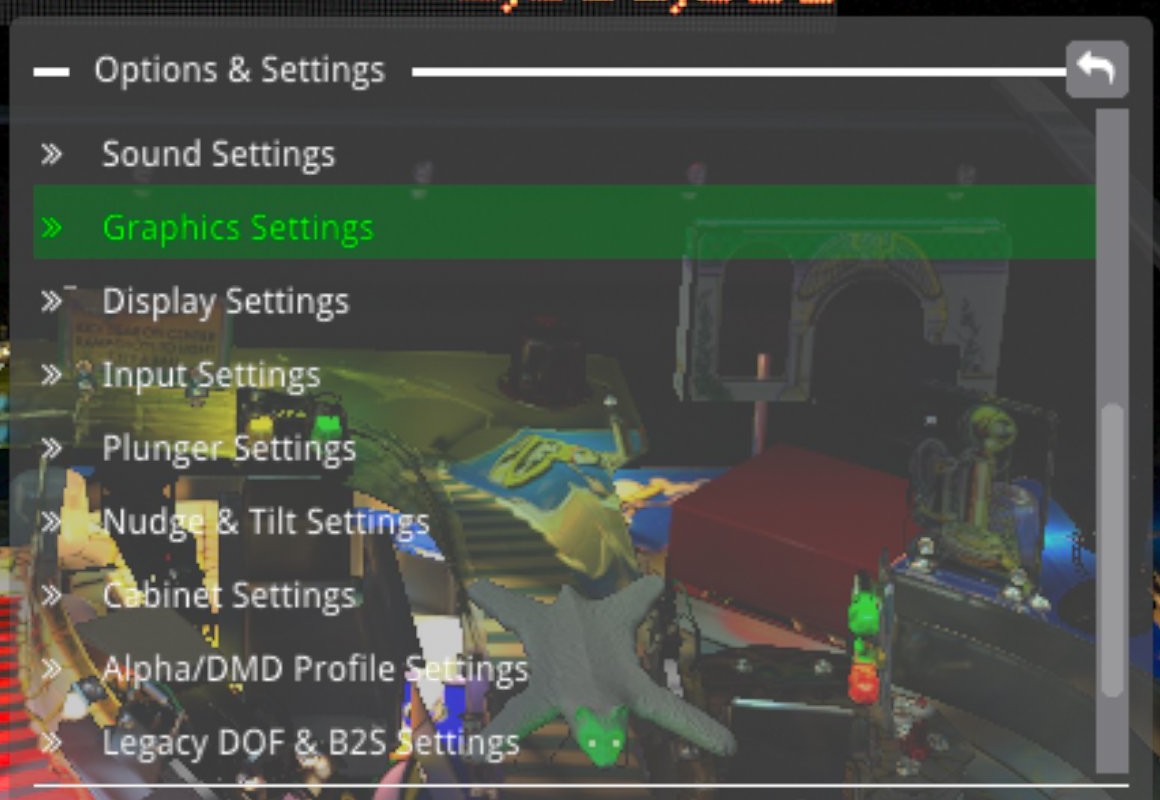
The middle button of the VirtuaTilt (In-game menu) opens the Visual Pinball X menu, the same as X on the left controller. Move in the menu with the left and right MagnaSave buttons (Black buttons), and confirm with the right flipper button (Red button). At the top you find Table Options, VR Settings and Quit. Scroll down for Graphics Settings and Nudge & Tilt Settings:
If a table does not start
It stays on Launching or on a black screen, or you see the Quest home. This happens when a table was closed from the Quest menu, or when the cable moved during a table. The old table is still running in the background, and Visual Pinball X can't start a new one.
NOTE: Restart the Quest: hold the power button and choose Restart. Your tables and settings stay. With the USB cable, click OK on the request after the restart: without it the solenoids and shaker don't work.
The VirtuaTilt Bridge window
The three boxes at the top tell you if everything is ready. Green is good, red needs you, and each box says what to do.
Your tables
For each table you see its ROM, its DMD and its picture. Click a table to see all its files. Delete removes a whole table or a single file: it asks you first with Really delete?, and you can't undo it.
VirtuaTilt test, live
Press a button, pull the plunger or shake the cabinet, and you see it. You don't need a table. It is a quick way to check that the cabinet and its profile are right.
Graphs
NOTE: The headset hides this window while a VR table runs. The app records the last 5 minutes of play, so you look at the graphs after you leave the table.
- What the table fired: a lane for each solenoid and for the shaker. It lights when the table uses it.
- How fast the VirtuaTilt answers: under 5 ms is good with the USB cable, under 30 ms over Bluetooth.
- Messages from the table: about 20 per second during a game.
You don't want the graphs? Turn off Show graphs. The app stops recording and remembers your choice.
Under the graphs, Show the numbers gives the same information in numbers, for when you ask for help.
Picture and speed
Set up Visual Pinball X already applies the best settings we found on Quest 3. You don't need to change anything:
| Setting | Value |
|---|---|
| Headset refresh rate | 72 Hz |
| Picture resolution | 100%, what the headset asks for |
| Post processed sharpening | CAS |
| Disable Bloom | On |
| Disable Ambient Occlusion | On |
| Reflection Quality | Disable Reflections |
| Post processed antialiasing | Disabled |
| Maximum texture dimension | 3072 |
| Backglass and Playfield Spatial Audio | Off |
IMPORTANT NOTE: Don't go under 100% resolution. In our tests the table got blurry, and black bands appeared on the screen that moved with your head.
These settings changed almost nothing in our tests, so don't lose time with them: Anisotropic Filtering, Detail Level, Compress Textures, smaller textures. 72 Hz was much better than 90 Hz.
You find the others in In-game menu > Graphics Settings. Press Start to save a change.
VR room
Many VR tables have a room around the cabinet. If a table stutters, try to turn it off in In-game menu > Table Options. This menu is different for each table, and not all tables have this option.
Music too low
On a table with a ROM, the music has its own volume inside the ROM. Visual Pinball X is already at its maximum, so you raise it in the ROM. You do it once for each table: the ROM saves it when you leave the table.
With the table open, hold Extra Ball and press a button on the sides. With the Quest controllers, hold B:
| In the ROM | VirtuaTilt: hold Extra Ball and press | Controllers: hold B and press |
|---|---|---|
| Cancel | Left Black button | Left grip |
| Down | Left Red button | Left trigger, all the way |
| Up | Right Red button | Right trigger, all the way |
| Enter | Right Black button | Right grip |
| Coin door | Launch Ball | Press the right stick |
Press Up a few times: you see the volume on the DMD. To change the other settings of the ROM, press Enter to open its service menu.
NOTE: The flipper on the table moves and its solenoid fires while you do this. With the controllers, B also adds a credit. Both are normal.
Each maker has its own service menu
The table above is for Bally and Williams of the 1990s and for Stern from 2006: we tested these. On other makers the same four buttons do different things, in the same order:
| Maker | Left Black button | Left Red button | Right Red button | Right Black button |
|---|---|---|---|---|
| Data East, Sega, Stern before 2006 | Black | Green | Red | Not used |
| Williams of the 1980s | Up/Down | Advance | CPU diagnostic | Sound diagnostic |
| Bally and Stern of the 1970s and 1980s | Self test | Not used | CPU diagnostic | Sound diagnostic |
For any other maker, see the manual of the table.
NOTE: Some tables close the coin door when they start, and their service menu may not open. In our tests Coin door did not solve this on one table.
A table with no ROM has no such menu. If it has a music volume, you find it in In-game menu > Table Options.
Tables, backglass and DMD
- Normal tables: VirtuaTilt Bridge makes room under the backglass picture and puts the DMD there. It needs the
.directb2sfile. The original stays next to it as.directb2s.original. - VR tables: they have their own backglass and DMD inside the table. VirtuaTilt Bridge finds them from VR in the file name and adds nothing.
- Pictures: a table with a backglass gets its picture from it. Without a backglass, Visual Pinball X makes one when you leave the table with the Exit Table button or with Quit, showing what you are looking at.
- Solenoids and shaker work on tables that support DOF, with or without a ROM. A table with no DOF does not fire them.
- Williams, Bally and Data East tables can show “Factory settings restored” at the first start. Leave the table and start it again.
Nudge and view
View
- Sit or stand in your playing position and press the joystick to align the view.
- Move the joystick up and down for the height, left and right for the distance.
- You find more in In-game menu > VR Settings and Point Of View. Press Start to save.
Nudge and Tilt
The nudge is already set. If you want to change it, go to In-game menu > Nudge & Tilt Settings:
- A Tilt that comes too early: raise Plumb Threshold.
- A table that shakes too much: lower Visual Nudge Strength.
- If solenoids or shaker make the game register a nudge, first lower the shaker strength. If it is not enough, try the Low-pass filter in the Nudge window of GUIConfigTool.
How to update
Visual Pinball X and VirtuaTilt Bridge are two separate apps. Update only the one that has a new version:
- Visual Pinball X: download its new APK as in step 3 and install it over the Visual Pinball X on your Quest, as in step 4.
- VirtuaTilt Bridge: take its new APK from the Meta Quest package and install it over the VirtuaTilt Bridge on your Quest, as in step 4. Its version is at the top right of its window.
Your tables and settings stay. You don't need Set up or a restart.
IMPORTANT NOTE: Never uninstall Visual Pinball X to update it. Uninstalling deletes all your tables.
We write in step 3 the build of Visual Pinball X we tested. A later build can have new problems, and to go back you must uninstall it.
VirtuaTilt firmware: update it before VirtuaTilt Bridge. What you need says which firmware you need. To update it, see Firmware Update.
IMPORTANT NOTE: Over Bluetooth, after a firmware update remove the VirtuaTilt in the Quest's Bluetooth settings and pair it again. The Quest still uses what it learned from the old firmware. See Play over Bluetooth.
Problems
| What you see | What to do |
|---|---|
| The PC does not see the Quest | Use a data cable and remove adapters. Unplug and plug it with the headset on. Allow USB debugging in the headset. |
| The cabinet does not turn on when connected to the Quest | Use the OTG adapter, not a simple USB-C cable. |
| VirtuaTilt Bridge says “Visual Pinball X is closed or does not answer” | Open Visual Pinball X, then try again. If it is already open, turn on Web Server in its Settings. |
| VirtuaTilt Bridge says “It needs firmware v8.0.22 or later” | Update the VirtuaTilt firmware. See How to update. |
| Set up says the VirtuaTilt is not connected | Connect the cabinet and accept the request, or over Bluetooth turn it on, then press Set up again. The buttons can only be set with the cabinet connected. |
| VirtuaTilt Bridge says “A table was opened before the Quest restarted” | Visual Pinball X will undo Set up. Close the table, press Set up again, then restart the Quest before you open a table. |
| The cabinet buttons do nothing, or a flipper button closes Visual Pinball X | If you connected the cabinet with Visual Pinball X running, restart the Quest, and with the USB cable click OK on the request. If not, check that a Quest profile is loaded. The Quest ignores keyboard keys during the game, so PC profiles don't work here. Then press Set up again and restart the Quest. |
| The flipper buttons do nothing in another game | Close the Visual Pinball X and VirtuaTilt Bridge windows, or restart the Quest. If you use Quest Games Optimizer, close it too. |
| No solenoid or shaker | Open VirtuaTilt Bridge. With the USB cable, if you see a request, click OK: the headset asks after every restart. The VirtuaTilt box must say “Connected”. If it says Another profile, load a Quest profile, or over Bluetooth see the row “VirtuaTilt Bridge says Another profile”. Check that the table supports DOF: not all tables do. |
| Over Bluetooth, VirtuaTilt Bridge says “Not connected” | Turn on the cabinet: the Quest connects to it in a few seconds. Check that VirtuaTilt VPX is in the paired devices in Settings > Bluetooth; if not, pair it as in Play over Bluetooth. |
| The Quest says “Couldn't pair” when you pair the VirtuaTilt | Open VirtuaTilt Bridge once, then pair again. Another app may have closed the part of the Quest that confirms the pairing: VirtuaTilt Bridge opens it again. |
| VirtuaTilt Bridge says “Another profile” | Click Open the Bluetooth settings. Remove the old VirtuaTilt there, then pair VirtuaTilt VPX. See Play over Bluetooth. |
| VirtuaTilt Bridge says “Bluetooth not allowed” | Click Open the settings in VirtuaTilt Bridge and turn on Nearby devices. VirtuaTilt Bridge connects at once.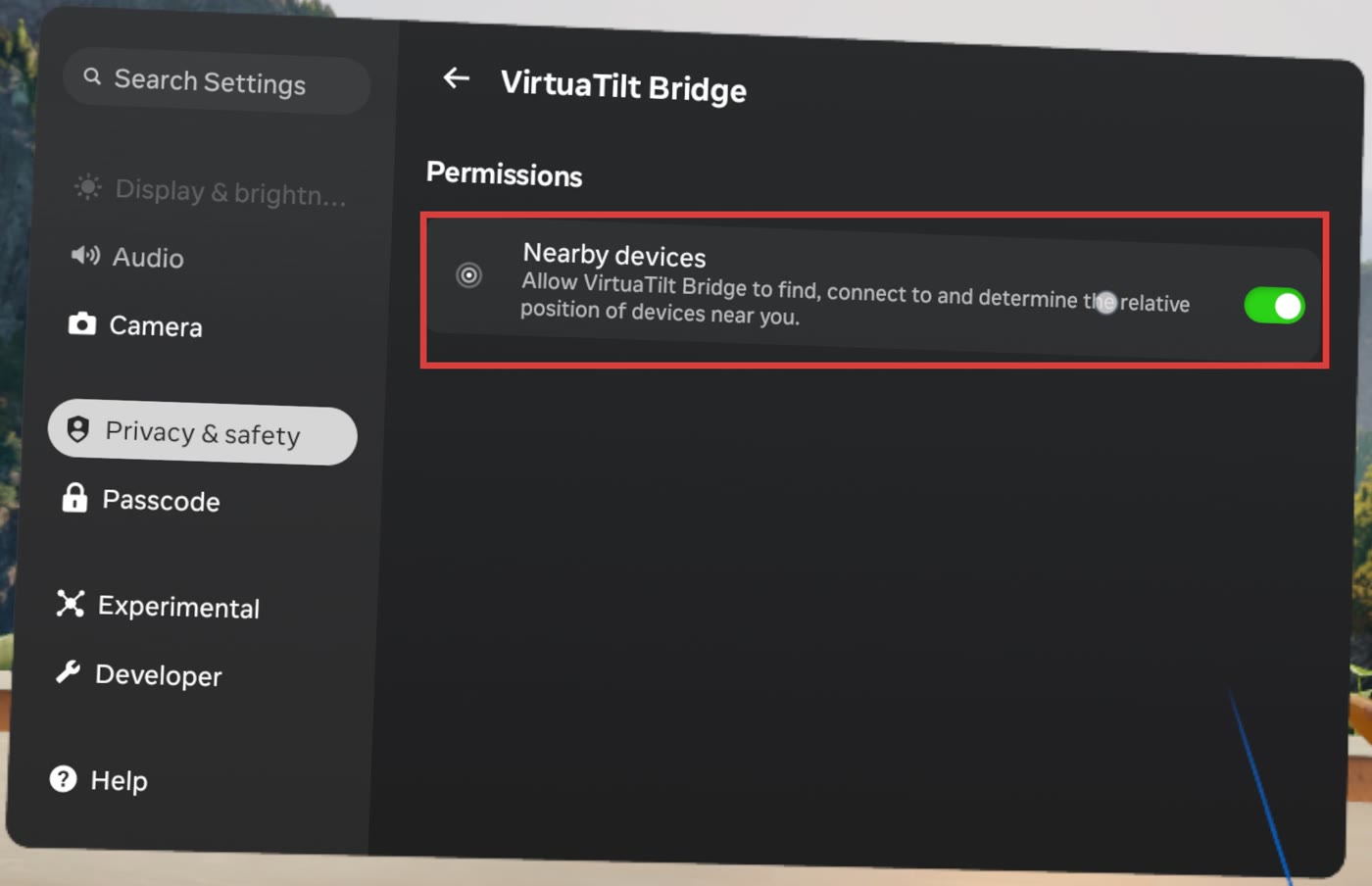 |
| A table does not start: Launching, black screen or Quest home | See If a table does not start. |
| The Quest menu does not show any more: the pointer moves, but the Meta button opens nothing | Restart the Quest: hold the power button and choose Restart. In our tests this happened once, after a table was closed from the Quest menu. |
| The headset says “Finding position in room”, and apps don't open | Put on the headset and look around, with the room lit. Wait for the message to go away. Don't choose Continue without tracking. |
| A normal table has no DMD | It needs its .directb2s. Drag it into the folder of step 7 and click Add the new tables. |
| A table has no sound, or the list says a ROM is missing | Drag the ROM into the folder of step 7 and click Add the new tables. A modified ROM (often with h in its name, like tom_14hb) also needs its original (tom_13): add that too. VirtuaTilt Bridge does not tell you this one, so check here if a table has no sound. |
| Two backglasses, one over the other | The table has its own backglass, but no VR in the file name. Delete it, rename the .vpx on your PC so that its name has VR, and add it again. |
| Visual Pinball X closes by itself when a table starts | It is rare, unless a table was closed from the Quest menu. Open Visual Pinball X and click the table again. If it happens again, restart the Quest. |
| A table has no picture in the list, or an old one | Visual Pinball X makes the picture only once. To make a new one, click the table in Your tables, delete its .jpg, play the table and leave it with the Exit Table button. |
| Windows does not show the folder of step 7 | Use a data cable. Put on the headset and click the notification USB Detected. If you don't see it, open the notifications in the Quest menu (the bell icon). The folder appears after you open VirtuaTilt Bridge once. |